Showing posts with label Feed. Show all posts

Add email Subscription form to blog

http://blogknol.blogspot.com/2010/08/add-email-subscription-form-to-blog.html


Actually,when a man needs to get every published post of your blog as email, he should subscribe your post.So we need to create a form to enter their email address,and can easily subscribed.This created you permanent visitors.This would increase your page views of blogFor this You should need a Feed burner account.

  • Please Click on your Blog name and you will be redirected to next page.Please See the image Below.


  • Please Click on Publicize in the tab.

  • Then Click on "Activate" Button.[See the image Below].


  • Please Click on Email Subscription  on left menu List.[See the Fig below]

    .


    • Now Select he code and Copy it.Then Return into Blogger


    • Go to Design >> Add a Page Element and Paste this Code and Publish,.Its Done!!

    Add your blog feed to your facebook profile


    We're kicking off our video series with a quick tutorial on how to add your blog's feed to your Facebook profile. That way, every time you publish a new blog post, Facebook imports it as a Note and notifies your Facebook friends. Hosted by me (Andy) your in-residence TypePad scientist:


    Create a Blogger Feed


    1. Enter your blog's web address in the "Ready to Burn?" form found on FeedBurner's homepage and at the bottom of the pages in the Blog and Podcast sections. If you plan to publish a podcast with your Blogger feed, check the "I am a podcaster" box. Click Next ».

    2. The Identify Feed Source page should appear.


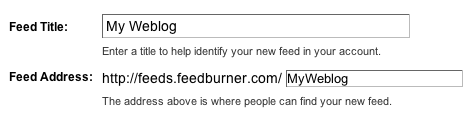
    3. On "Welcome", make sure the title and FeedBurner address (URL) of your new feed are values you prefer.


      The Create or Sign In To Your FeedBurner Account page should appear.


    4. Also on this page, create a FeedBurner account by picking a username and password and supplying your email address.

      When you've supplied all the required information on this page, click Activate Feed ». A "Congrats" page should appear.


    5. Read all of the information on "Congrats", then click Next » to continue with the setup process.


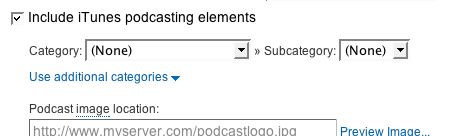
    6. If you selected "I am a podcaster" on the homepage, configuration options for our SmartCast service will appear. Here you can supply categories and other information for iTunes, append a copyright message, and submit your podcast to Yahoo! Search.


      When you are finished, click Next ». Configuration options for FeedBurner stats services should appear.


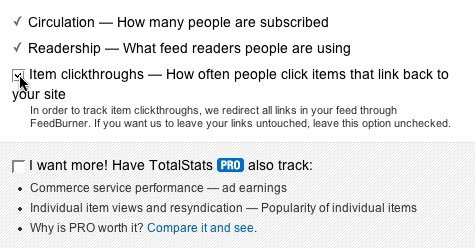
    7. On the stats configuration page, select the level of feed stats detail you want.


      Click Next » to finish the setup process and enter our feed management interface.

      You're now ready to make your FeedBurner feed available on your Blogger site!


    Tracking 100% of your feed traffic: Redirecting your Blogger feed to your FeedBurner feed

    Blogger can make sure all feed traffic for your blog content goes to your FeedBurner feed. This ensures your FeedBurner stats are comprehensive and accurate; even subscribers to the 'Original Feed' are routed through FeedBurner. To redirect your feed:

    1. In a new browser window, sign in to your Blogger account.


    2. From the Blogger Dashboard, click the Settings link for the blog you want to promote.

      The Settings page for your selected blog should appear.


    3. Click the Site Feed link under the Settings tab.


    4. Type your complete FeedBurner feed address into the Post Feed Redirect URL text field. Make sure you type in your entire feed address including the "http://" portion.


    5. Click Save Settings.

      You should see the message "Settings were Saved Successfully".


    6. Blogger will now redirect all feed traffic for your blog to your FeedBurner feed.

      Note: If you are using the redirection feature within Blogger to send all of your feed traffic to your FeedBurner feed, you may want to modify the code we provide in order to keep your subscribers with you, even if you leave FeedBurner.


    Tweet your Post


             What about tweet your posts in blog.Now blogger feeds makes this opportunity for Bloggers.Now you can automatically update your twitter account with latest updates of your blog.For this Follow the Followed Methods..

    • Create a account in http://twitterfeed.com/ with OpenID .
    • Type your Blogger URL address.
    • After Registration you will be taken to new  Page where you can start linking blog feeds to your Twitter account.
    • Click the 'Connect your feed to Twitter Account' button, 
                            Which will prompt you to enter your Twitter login credentials to authorize Twitterfeed's access. You will get a nice little confirmation once you've successfully linked up your Twitter Account.


    • Enter a name for your feed. 
                  If you want to customize your feed's settings you can modify frequency, add prefixes, and even create keyword filters. 
    • click the Create Feed button. 
    • Done!! Twitterfeed is enabled.