Showing posts with label blogger tutorial. Show all posts

New Blogger Template Designer


Its a Good news for All blogger s,Blogger announced that
the Blogger Template
Designer
has launched to Blogger
in Draft
, . The Template Designer brings a new level of
customization to your blog. Now you can easily edit the background,layout and other without using  "edit html" ,That means an Low level blogger can design his blog fantastically.Take a look to know more:


In the Template Designer, you’ll find:


  • 15
    new professional templates to start from (and more on their way)

  • Custom blog layouts with one, two and three columns

  • Hundreds of professional background images from iStockphoto

  • Customizable colors, fonts, and more!


We have more details and tips in our Blogger Template Designer post on
the Blogger in Draft blog.


We worked with iStockphoto, the
leading microstock image marketplace, to put together a great collection
of beautiful images and patterns to use as backgrounds on your blogs.
The photos are stunning, and are free to use on your Blogger blog.


That being said, today’s launch is just the beginning. We’ll add more of
our own designs over the coming weeks and months and, through the new Template
Design Group
, we’ll be working with members of the Blogger design
community to bring their templates into the new Template Designer.


Help test drive the Blogger Template Designer by logging into Blogger In Draft, and learn more
about the new features in more detail on the Blogger In Draft blog.

Post to my blog


  • Go To www.blogger.com 

  • Once you've logged into Blogger you'll see your Dashboard, showing your list of blogs. 

  • Click the blue 'New Post' button to create a new post:


Screenshot: Blog List

  • Next, you'll see the Create New Post page. Start by giving your post a title (optional), then enter the post itself:


Creating a new post

  • When you're done, click the "Preview" link to make sure it's ready to go:


Previewing a post

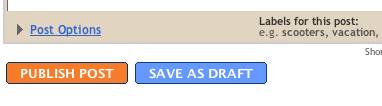
  • Once you're satisfied with your post, click the "Publish" button. This will publish your new post:


Publish your post

Import and Export blog


                  The import and export features on Blogger give your content a whole new range of portability and freedom, allowing you to create copies of your own blogs as well as import them into other existing ones. Best of all-we've made this a very simple process!

Import as a New Blog


       To import content as a brand new blog, click Create a Blog from your dashboard. 

                                                                                     Read More >>


     Then under Advanced Options, click the Import Blog Tool


Finally, choose the Blogger export file (.xml) from your hard drive and fill out the word verification. Click the Upload arrow and your new bog will be created instantly!

Import Into an Existing Blog

To import posts and comments into an already existing blog, start by clicking Import Blog from the existing blog's Settings | Basic tab.

Note: Your template will not be affected by the imported content.


Next, choose a Blogger export file (.xml) from your hard drive and fill out the word verification beneath. By default, all of your imported posts will remain unpublished until you publish them from your dashboard later. However, if you would rather have all posts published immediately, make sure to check the box next to Automatically publish all imported posts before you click Import Blog.


If you did not choose to have your posts publish automatically, you will need to manually publish them from the Posting | Edit Posts tab before they will appear on the web. You can either publish all the posts at once by clicking Publish all imported posts, or publish individual posts by selecting them and then clicking Publish Selected.

Exporting Your blog

To export your blog, simply click Export Blog from the Settings | Basic tab.
Finally, click the Export Blog button. You blog will be stored as a Blogger export file (.xml) file which can be kept as a backup on your hard drive or imported into another blog.